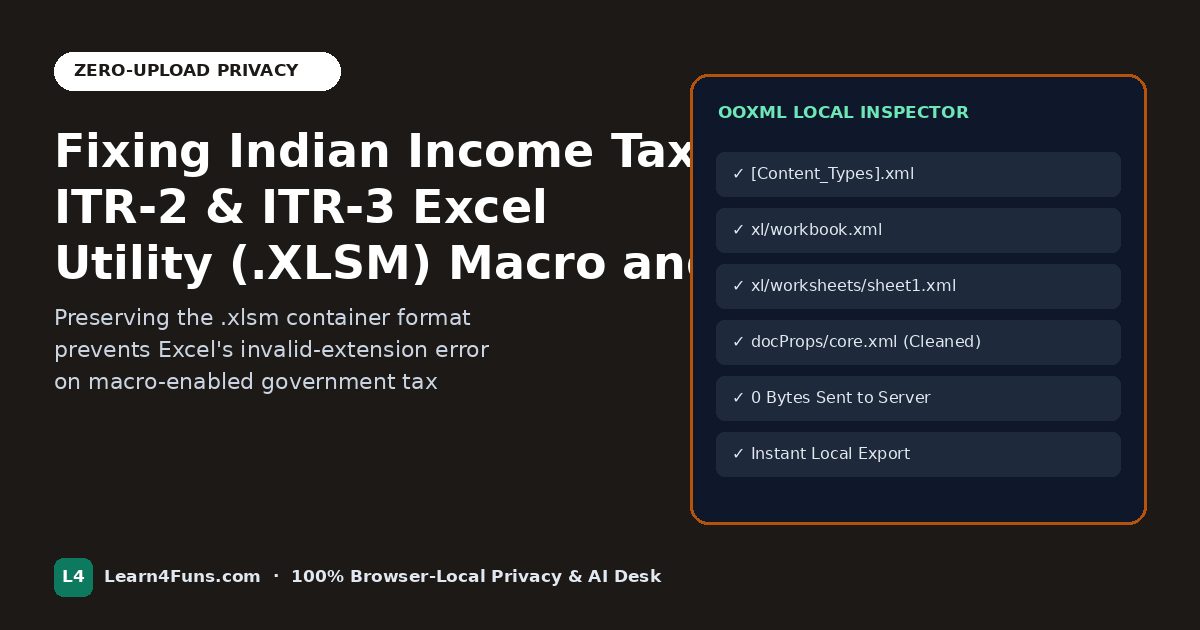
Why government ITR .xlsm utilities fail when saved as .xlsx—and how to keep macros intact while validating schedules safely. In this practical Learn4Funs guide, we break down the exact workflow, formulas, and verification steps so you can execute reliably on any computer or phone.
Step-by-Step Practical Blueprint
Always keep macro-enabled ITR utilities in .xlsm format unless you intentionally strip macros for read-only archiving. Back up your raw JSON/XLSM before editing, and inspect sheet protection or VBA settings strictly on your local computer.
- Keep an unmodified backup: Always save a timestamped copy of your original workbook before modifying structure or formulas.
- Process locally with zero server upload: Open our VBA Password Remover (Free Tool)—all parsing and output generation runs strictly on your device.
- Verify totals & format integrity: Check edge-case rows, confirm file extensions match content types (
.xlsmfor macro workbooks,.xlsxfor standard sheets), and scrub hidden metadata before sharing externally.
Common Mistakes to Avoid
- Mismatched file extensions: Never rename a macro-enabled
.xlsmfile to.xlsxwithout cleanly removing VBA content types—otherwise Microsoft Excel will refuse to open it. - Uploading sensitive records online: Keep tax filings, payrolls, and client lists inside browser-local tools where zero bytes leave your machine.
Frequently Asked Questions
Will the exported spreadsheet open cleanly in Microsoft Excel and LibreOffice?
Yes. Learn4Funs validates OOXML structure, UTF-8 headers, and exact file extensions so downloaded .xlsx and .xlsm files open cleanly across Excel, LibreOffice, and Google Sheets.
What should I read next?
Continue with How to Remove a VBA Project Password in Excel (Browser Tool, 64-Bit VBA & Hex Guide) and How to Unprotect Excel Sheets and Workbook Structure Without Losing Formulas, or browse all free browser tools.