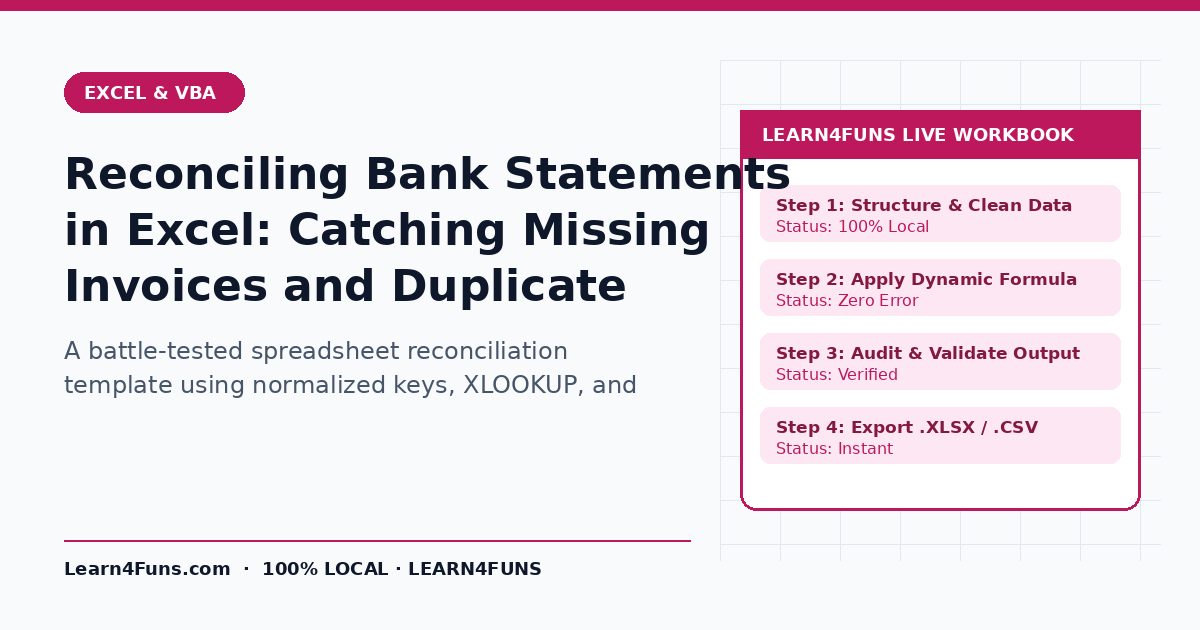
A battle-tested spreadsheet reconciliation template using normalized keys, XLOOKUP, and tolerance checks to match bank feeds against your ledger. This human-written Learn4Funs guide breaks down the exact workflow, structure, and privacy-first practices you can apply immediately alongside our local browser tools (CSV to QuickBooks QBO and Excel Data Cleaner).
Why This Matters Right Now
Manual tick-and-tie reconciliation misses bank fees and duplicated debits. A 4-column formula workflow highlights every unmatched rupee or dollar immediately. Rather than relying on vague theory or bloated paid add-ons, the checklist below focuses on repeatable steps that hold up under real deadlines on both desktop and mobile.
Step-by-Step Implementation Guide
1. Standardize dates and signs across both exports
Convert bank debits/credits into one signed Amount column (+ inflows, - outflows) matching your accounting ledger.
2. Create a composite match key
Combine date and rounded amount—=TEXT(A2,"yyyy-mm-dd") & "|" & TEXT(ROUND(C2,2),"0.00")—and append COUNTIF suffixes to handle same-day identical amounts.
3. Run a two-way XLOOKUP reconciliation
Check Bank → Ledger to spot unrecorded bank charges, and Ledger → Bank to spot uncleared checks or delayed deposits.
4. Summarize variances in a top-of-sheet control box
Display Opening Balance, Net Bank Movement, Closing Bank Balance, Ledger Closing Balance, and Variance (=0.00 when fully reconciled).
Common Pitfalls & How to Avoid Them
Watch out for this mistake: Watch for 1–3 day settlement delays between card swipe dates and bank posting dates—add a secondary amount-only check for unmatched items within ±3 days. Taking two minutes to run a quick validation check before sharing or publishing prevents hours of rework later.
Recommended Free Browser Tools
Every utility on Learn4Funs executes 100% locally in your browser with zero file uploads to any server. Pair this guide directly with CSV to QuickBooks QBO and Excel Data Cleaner to test your own files or copy-paste outputs privately.
Frequently Asked Questions
Can I convert my bank CSV into QuickBooks format locally?
Yes—use our browser-local CSV to QBO/IIF tool so your bank statement never leaves your computer.
Does Learn4Funs upload my files or text when I use these tools?
No. All 190+ Excel, VBA, and Fancy Text utilities run locally inside your browser's memory—zero bytes are ever transmitted to a remote server.